START
Install on macOS
Install twozero on a Mac in about two minutes: grant one permission, double-click one file. On Windows? See Install on Windows.
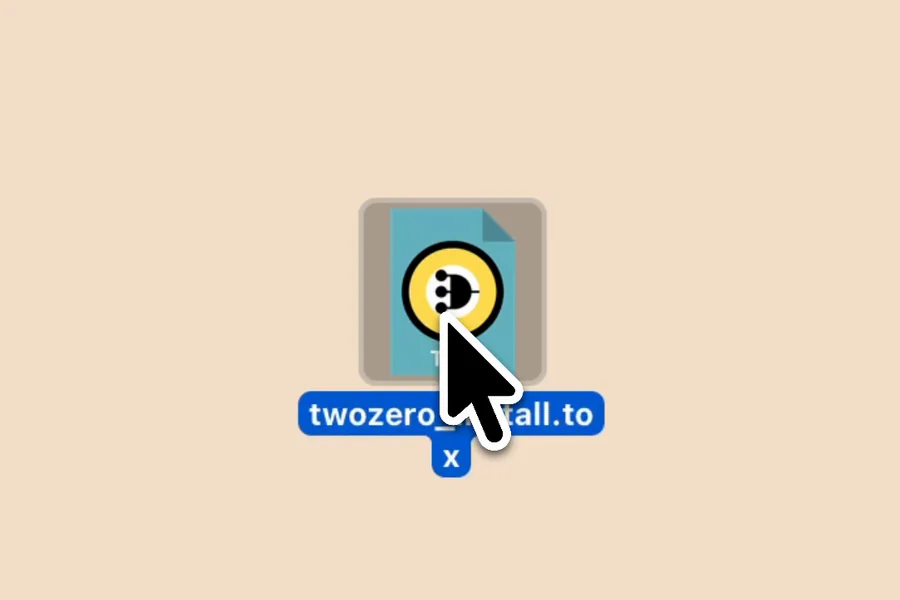
The clean way to install is to let TouchDesigner open the plugin file on its own, with no project of yours in the way.
Before you start
Give TouchDesigner Full Disk Access: System Settings → Privacy & Security → Full Disk Access → TouchDesigner. twozero writes a small loader into the TouchDesigner installation, and macOS needs this permission for it (why?). With it granted up front the installer never stops.
Install
- Download the plugin: DOWNLOAD TWOZERO on twozero.ai. You get one
.toxfile, named liketwozero_install_3_468.tox. - Close your project, then double-click the downloaded
.tox. TouchDesigner opens it as its own project. - Click GET STARTED. TouchDesigner may freeze for a few seconds; let it finish.
- Open your own project again. The twozero buttons are in TD's top bar, in every project.
When the install is done, the Connect your agent wizard opens by itself, then a short tour. See Connect your agent and First run.
If the installer stops on "One more step"
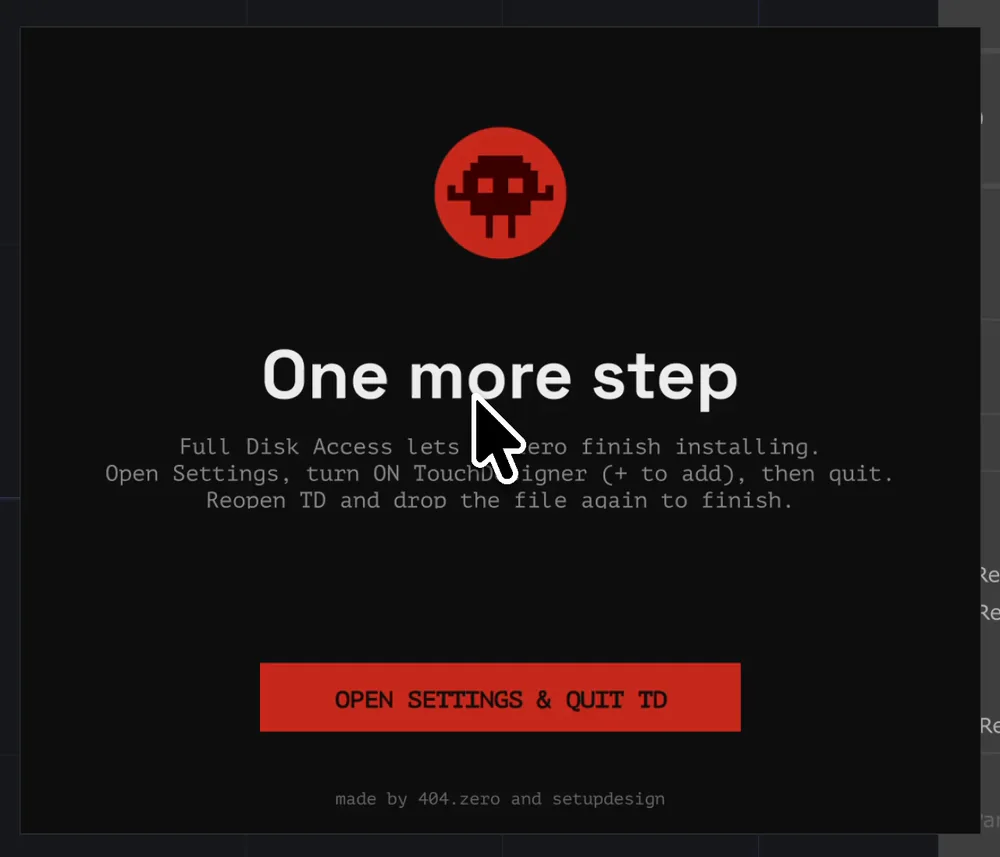
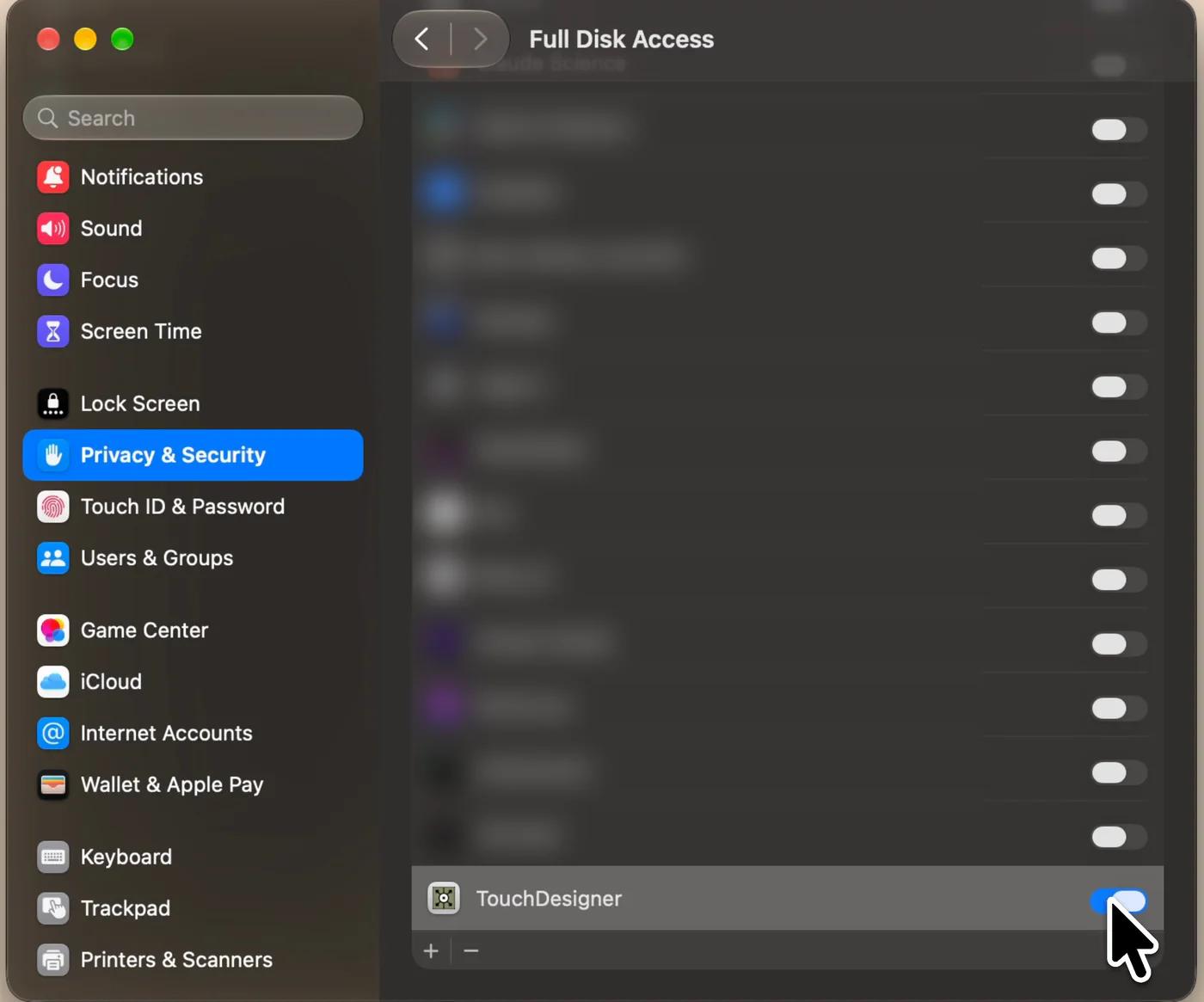
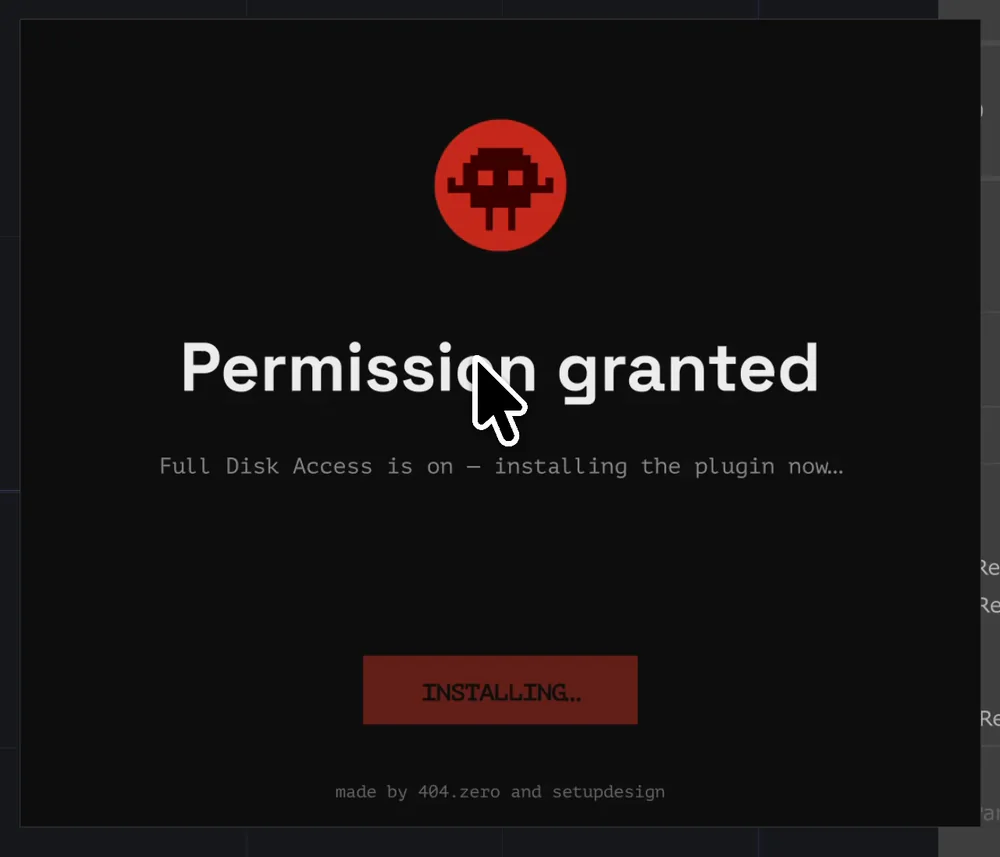
Full Disk Access is not granted yet. The button becomes OPEN SETTINGS & QUIT TD: it opens System Settings → Privacy & Security → Full Disk Access and closes TouchDesigner. Turn TouchDesigner on in that list, then double-click the .tox again. The installer sees the permission and finishes on its own ("Permission granted").
Dropping it into an open project
Dragging the .tox into the network editor of a project you are working in also installs it, and twozero works in that session right away. TouchDesigner then opens a second window for a few seconds to write its interface file and closes it by itself; let it finish. Double-clicking the .tox skips that window, which is why it is the recommended route.
Good to know
- On an older TouchDesigner build the installer shows Older TouchDesigner with CONTINUE ANYWAY and CANCEL. You can go on, but plugin updates stop arriving until you update TouchDesigner. See System Requirements.
- The MCP server starts with TouchDesigner. Settings → AI & MCP → Auto start is on out of the box.
- Start your agent's chat after TouchDesigner is up. See Agent can't see TD.
- Settings and your local folder live on disk, so reinstalling or uninstalling loses nothing.
- A new TouchDesigner build needs a fresh install: the plugin is stored per TD build. Settings and your local folder load automatically.
- Uninstall: Settings → PLUGIN → Uninstall plugin.
- The installer writes a log to
pisangVersions/install_debug.login TouchDesigner's preferences folder. Attach it when you ask for help.
Install didn't go through, or TouchDesigner behaves oddly afterwards? See Troubleshooting.