Local
Local (previously called Library) saves, searches and loads operators across projects. It stores both single components and whole sets of OPs with their connections and parameter expressions (templates). External assets — a moviefileinTOP's movie file, for example — can be collected into the local folder on save and are copied and relinked when you load the item back.
Search by parts of the name, separated by spaces: 'noiseWithSpeedOne' is found by typing 'no sp', 'noise sp', 'n sp on' or 'noisewiths'.
SAVE TO LOCAL:
- Select OP(s) in the Network Editor
- Open Local
- Type '+nameOfItem' — typing just
+on an empty field fills in the name of the current operator - [ENTER]
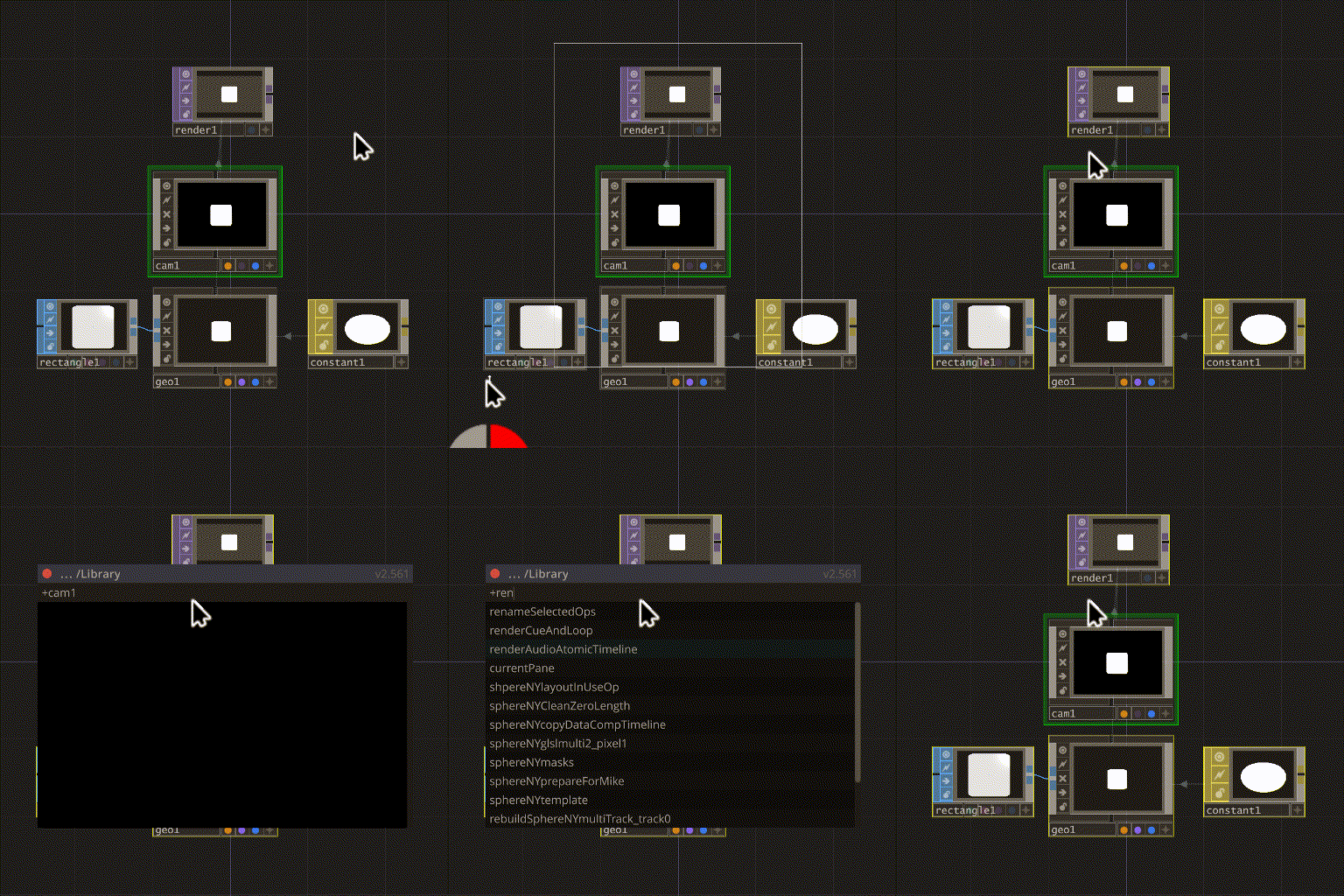
LOAD FROM LOCAL:
- Start typing the item name
- Select the item from the list with keyboard or mouse
- [ENTER] or LMB
- Place the OP(s) in the Network Editor
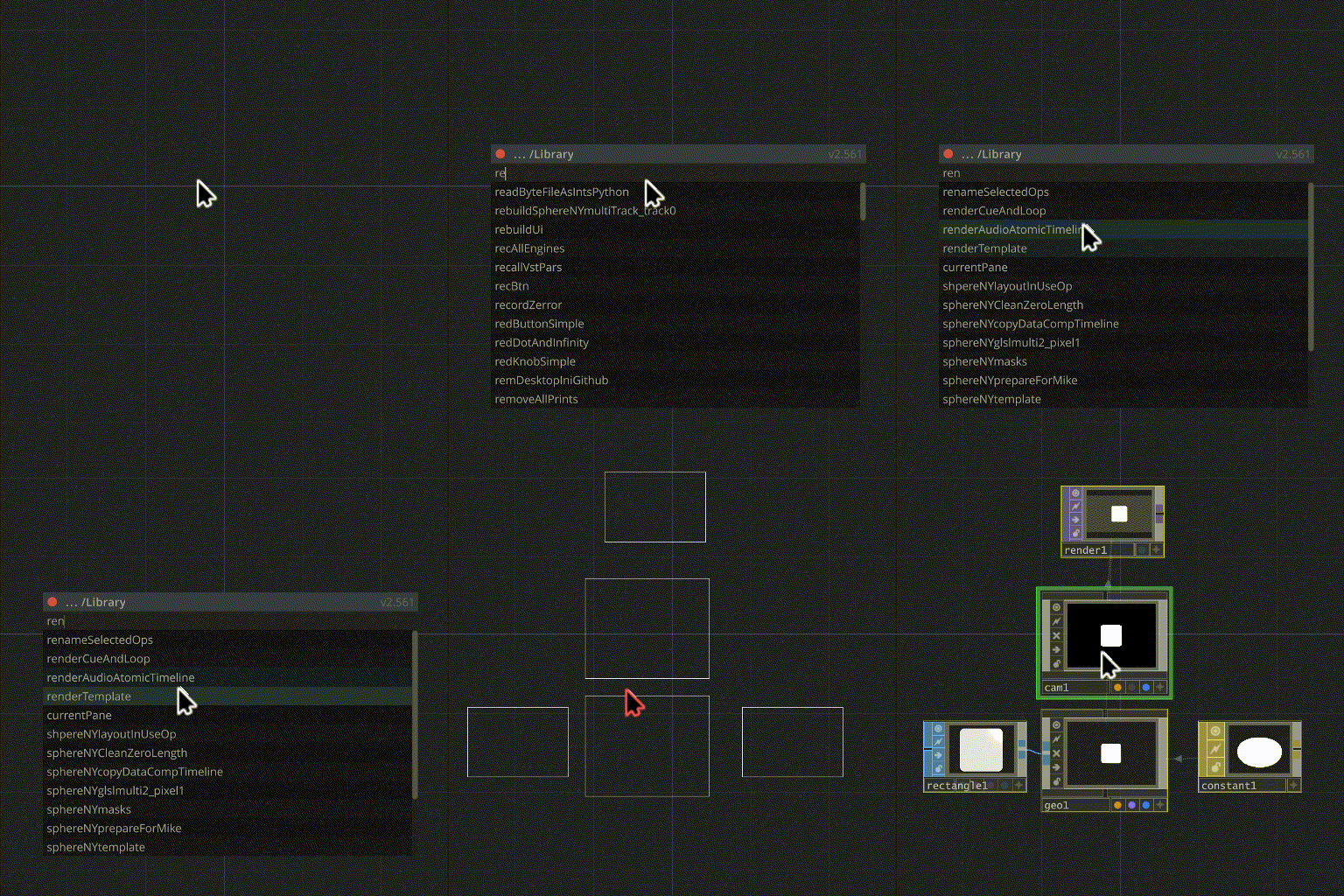
RIGHT-CLICK MENU:
RMB on a local item opens a context menu: Navigate to file — show the .tox in Finder/Explorer · Delete — remove the item from the local folder (with a confirmation dialog; a backup is kept).
REMOVE FROM LOCAL:
Highlight the item → [CMD/CTRL] + [Delete/Backspace] → confirm. Or RMB → Delete.
NOTES:
By default the local folder lives inside the TD preferences folder.
To change its location use Settings:
- Settings → Local folder → select a new location
- Check Copy to move existing items over, or leave it unchecked to start empty
MULTIPLE MACHINES:
If you work on several machines, put the local folder in a shared or cloud folder. Dropbox works well — set 'Available Offline' for the folder in the Dropbox settings. It then stays available and in sync on every computer. For sharing with other people, and for versioning, use Cloud instead.