START
First run
What opens the first time twozero starts, and where everything lives afterwards.
What opens after the install
- Welcome to TWOZERO: click Get started.
- Connect your agent: three steps, see Connect your agent.
- Quick tour: six short slides on your tools and where everything lives. Skip it with ✕ or replay it later: Settings → PLUGIN → Show intro again.
Then the twozero menu opens, and you are set.
The buttons in TD's top bar
twozero adds a row of buttons to TouchDesigner's top bar. Hover any of them for a tip.
TWOZERO Opens the twozero menu with every tool. RMB: quick switches for auto save .toe and the create OP dialog. See The TWOZERO menu.
MCP Shows whether the MCP server is running. Click to start or stop it; RMB: auto start MCP. See Talk to your agent.
RUDIMENTS Opens and closes the Rudiments window. See Get a rudiment.
ZOPS Opens and closes the ZOPS dock with key AI models, where TD's Palette opens. See Your first ZOP.
CLOUD Saves what you selected to your Cloud, or opens the Cloud window. See Cloud.
Give the menu a hotkey
Nothing is bound out of the box, so at first you open the menu with the mouse. Give it a hotkey once and the rest goes faster; the clips in these docs open the menu with one.
- Click TWOZERO in TD's top bar. The menu opens next to the button; drag it by its header to wherever you like.
- Click the gear in its header and scroll to HOTKEYS.
- Click the twozero row, press the key combination, then [ENTER] to save. [ESC] cancels, [BACKSPACE] clears.
A combination another tool already had moves to the new one. Other tools get their hotkeys the same way: see The TWOZERO menu.
The menu window
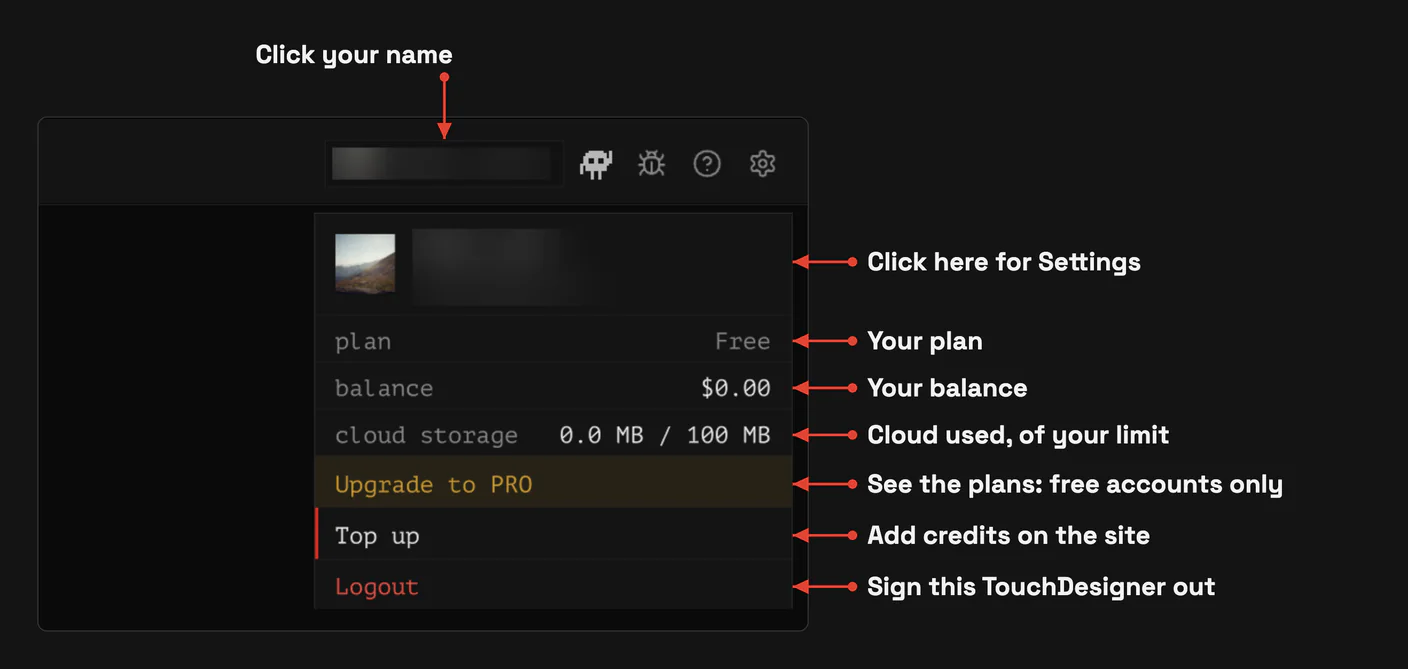
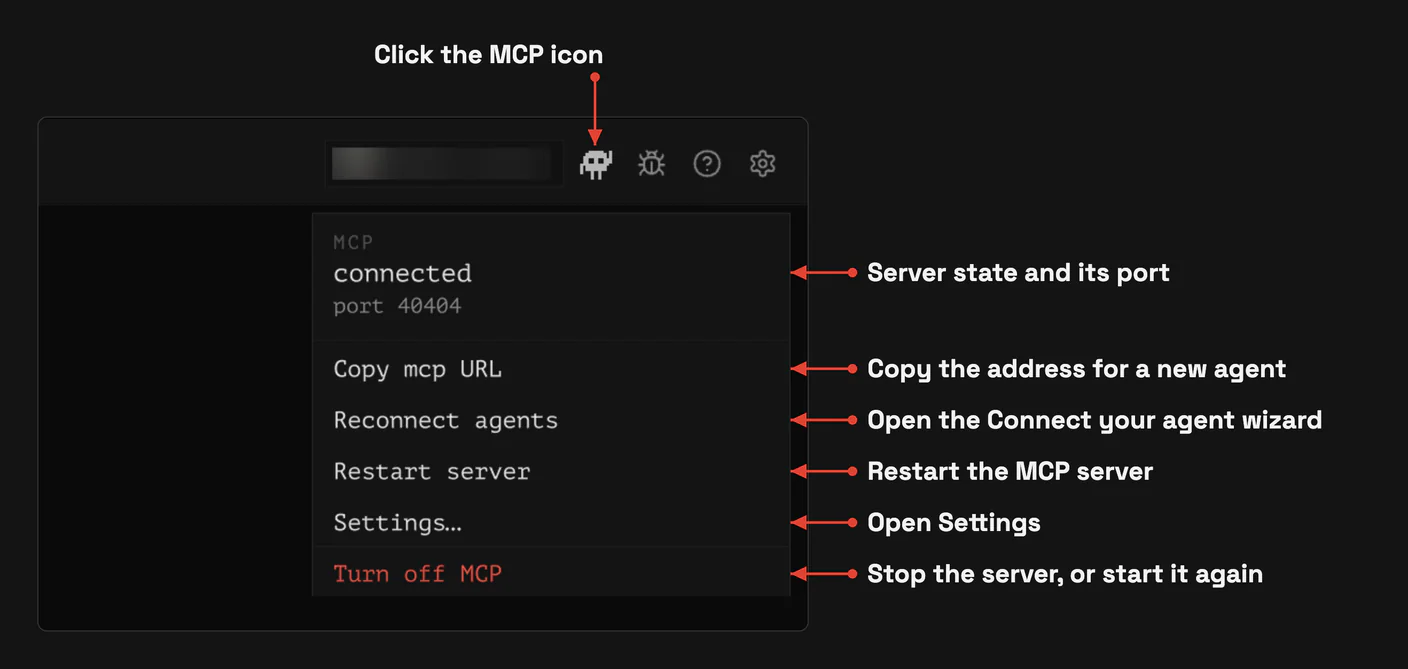
The header of the twozero menu holds your account and four icons:
Your name The account you are signed in with. Click it for your plan, balance and cloud storage, Top up and Logout. On a free account there is also Upgrade to PRO.
MCP icon Click it for the state of the MCP server and its port, Copy mcp URL, Reconnect agents, Restart server, Settings… and Turn off MCP (or Turn on MCP). See Talk to your agent.
Bug icon Report a problem: opens a form on the site, with a picture of the plugin window attached. See Troubleshooting.
? Opens these docs.
Gear Settings.
The version of the plugin is shown next to the TWOZERO logo. When a new one is out, a green Update to … link appears right after it: see Update.
Where to go next
- Ask your agent something: Talk to your agent.
- Put a ready-made component into your network: Get a rudiment.
- Generate an image inside TouchDesigner: Your first ZOP.
- Learn the keys and set hotkeys: The TWOZERO menu.